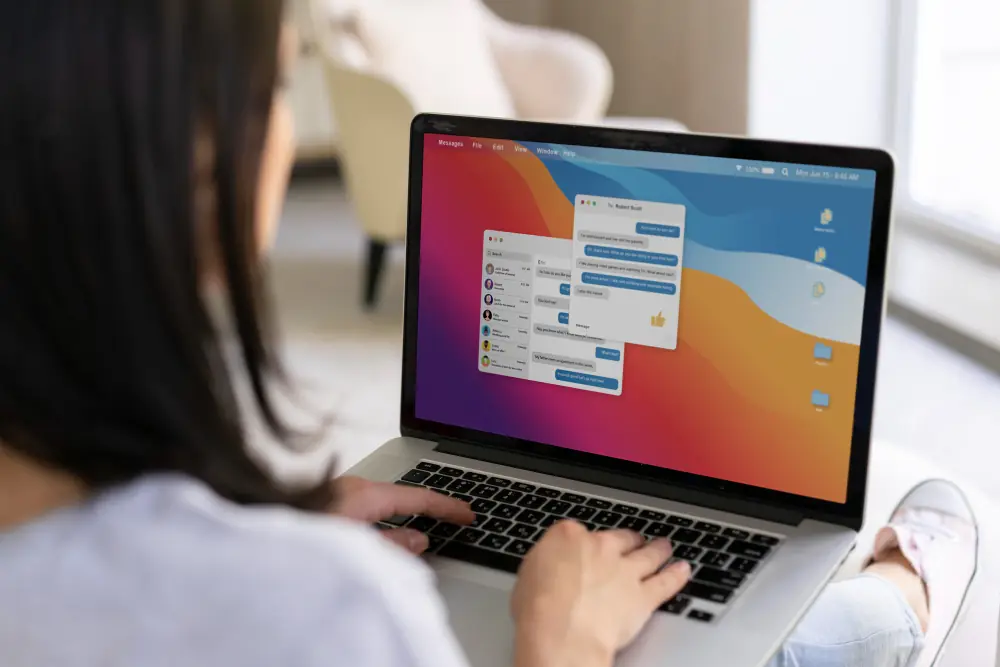
Your MacBook is packed with hidden tools that can seriously speed up your day, if you know where to look. Most people scratch the surface, open Safari, write some emails, and move on.
But once you learn a few slick shortcuts and smarter ways to manage your files, the MacBook feels like a whole new device.
Command + Space for Spotlight
Every time you go hunting for an app or a file by clicking around, you are wasting time. Hit Command + Space and open Spotlight. This simple search bar is a powerhouse. Type anything, such as file names, apps, calculator questions, or even definitions, and it fetches results instantly.
Spotlight also does math, launches apps, finds buried emails, and even gives you web results. Treat it like a control center. It is faster than browsing folders and smarter than you think.
Screenshot Shortcuts That Make Life Easy
MacBook makes capturing your screen way too convenient. For a full screenshot, press Command + Shift + 3. Want to select a specific area? Go with Command + Shift + 4. Need to record your screen? Try Command + Shift + 5. It opens a tiny toolbar with recording and capture options.
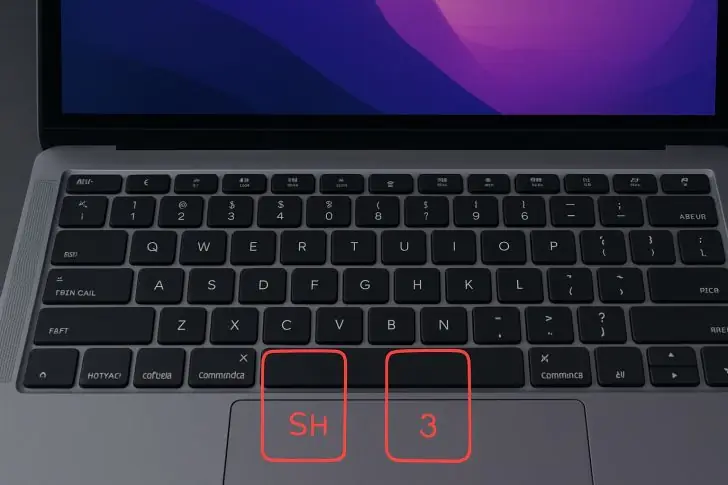
These tricks save you from messy desktop apps or clunky screen recorders. And the best part? Screenshots land neatly on your desktop, named and timestamped, ready to drop into emails or docs.
Quick File Previews With Spacebar
This one feels like magic. Instead of opening a file, just select it and press the Spacebar. Boom, preview! Works for PDFs, images, videos, spreadsheets, and more. No waiting, no launching apps.
You can even scroll through documents or play video files without opening QuickTime. It is a simple shortcut that saves a ton of clicks and time.
Command + Tab for Switching
Switching between apps with your trackpad gets old fast. Hold Command and tap Tab to jump between your open apps. It is clean, quick, and super satisfying once you get used to it.
Keep holding Command, and press Tab again to cycle through the lineup. Need to close something mid-switch? Press Q while hovering over that app. Efficient multitasking starts here.
Use Finder Like a Pro
Finder is more than a glorified file cabinet. Hit Command + T to open a new tab, just like a browser. Want to search inside a folder only? Press Command + F while in that folder.

Dig into Finder’s preferences to tweak what shows up in the sidebar. Make it work for you, not the other way around.
See Everything Instantly
Got too many windows open? Swipe up with three fingers or press Control + Up Arrow. Mission Control gives you a bird’s-eye view of everything open. It is like lifting the hood on your MacBook and seeing every app and window laid out neatly.
From here, you can move windows to different desktops, create new ones, or just find what you are looking for faster. It beats clicking through apps one at a time.
Easy Split View
MacBook lets you run two apps side by side, full screen. Click and hold the green dot in the top left of any window. Your screen will split, letting you pick another app for the other half.
It’s great for research, writing, or watching while working. With this kind of control, you don’t need an extra monitor. Exit Split View by pressing Escape or hovering at the top and clicking the green button again.